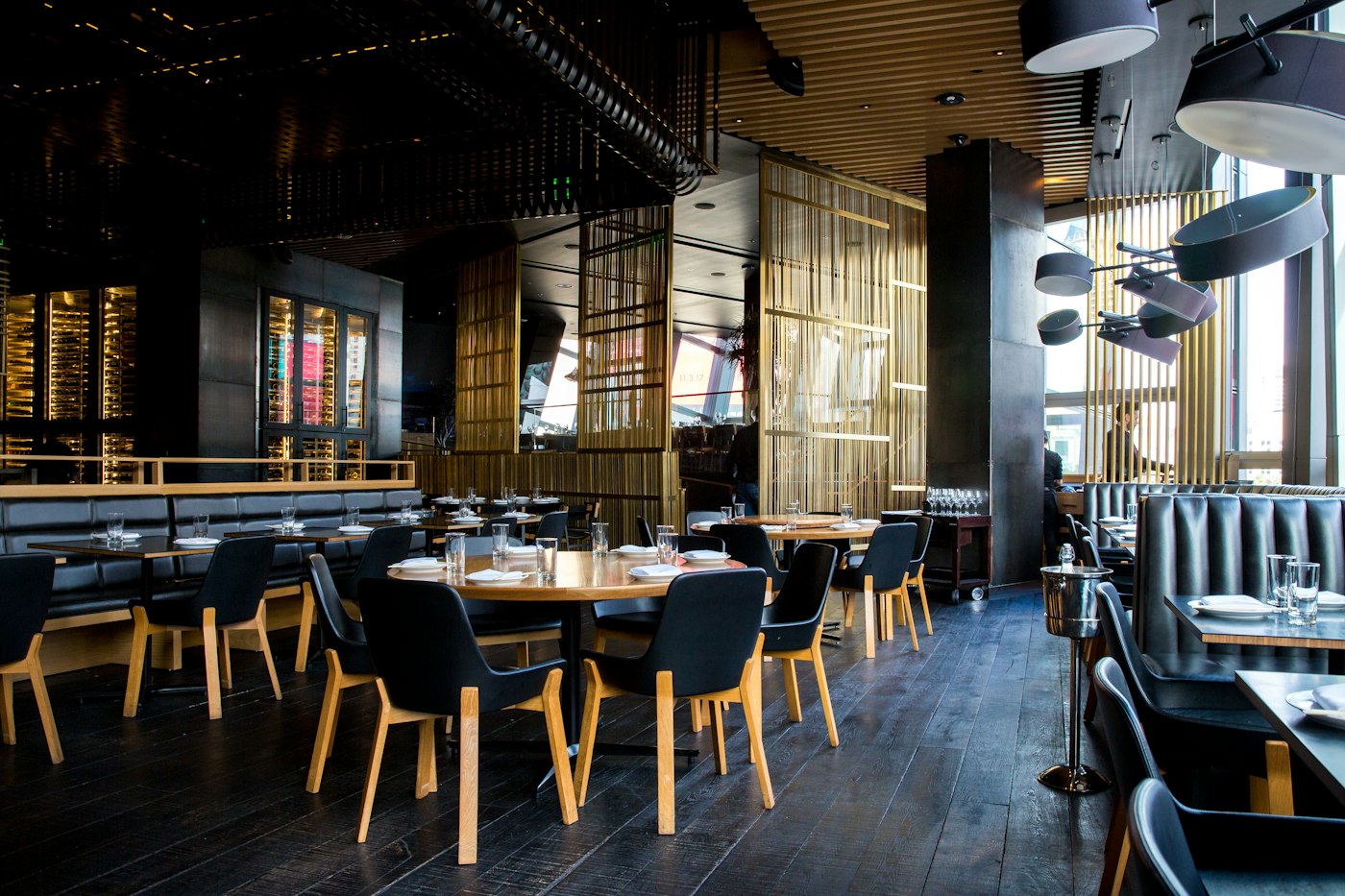
A waitlist tells you who is next. It does not tell you where to put them. On a busy night, that gap is filled by a host scanning the room, a paper chart, and a lot of guessing.
digiQueue now closes that gap. Table maps are live.
Draw Your Room Once
In settings, you build your floor the way it actually looks:
- Square, round, and rectangle tables, each with its own seat count
- Bars with individual bar seats
- Rotate and position each table, with a snap-to grid to keep rows clean
- Sections for each part of the house, like the main dining room, the patio, or the bar
- Servers assigned to the tables they cover
Made a mistake? Undo it. The map saves when you are happy with it.
Seat From a Live Map
On the host stand, the map becomes your seating screen. At a glance, every table shows:
- Who is seated and how many guests are at a table of that size
- How long they have been there, in minutes
- Which tables need cleaning before the next party
- Which server has the table
- Which free tables fit the party you are about to seat
Joining tables for a large party works the way it does on the floor. Pick the tables, seat the group, and the map shows them linked together.
Why It Matters
The waitlist and the floor have always been two separate jobs. One person tracks the line, someone else tracks the tables, and the guest waits while they compare notes.
With table maps, the line and the room live on the same screen. The next guest, the right table, and the server who has it are all in one place. Tables turn faster, fewer seats sit empty, and the host stand stops being the bottleneck on a Saturday night.
Priority guests benefit most. When someone pays to skip the wait, the host can see the right open table immediately instead of hunting for one.
How to Get It
Table maps are part of the Priority plan. Open settings, draw your floor, and start seating from the map on your next shift.
Want to see your own floor in digiQueue? Start free at digiqueue.me, or reach out at digiqueue.me/contact for a walkthrough.